Find with a few words.
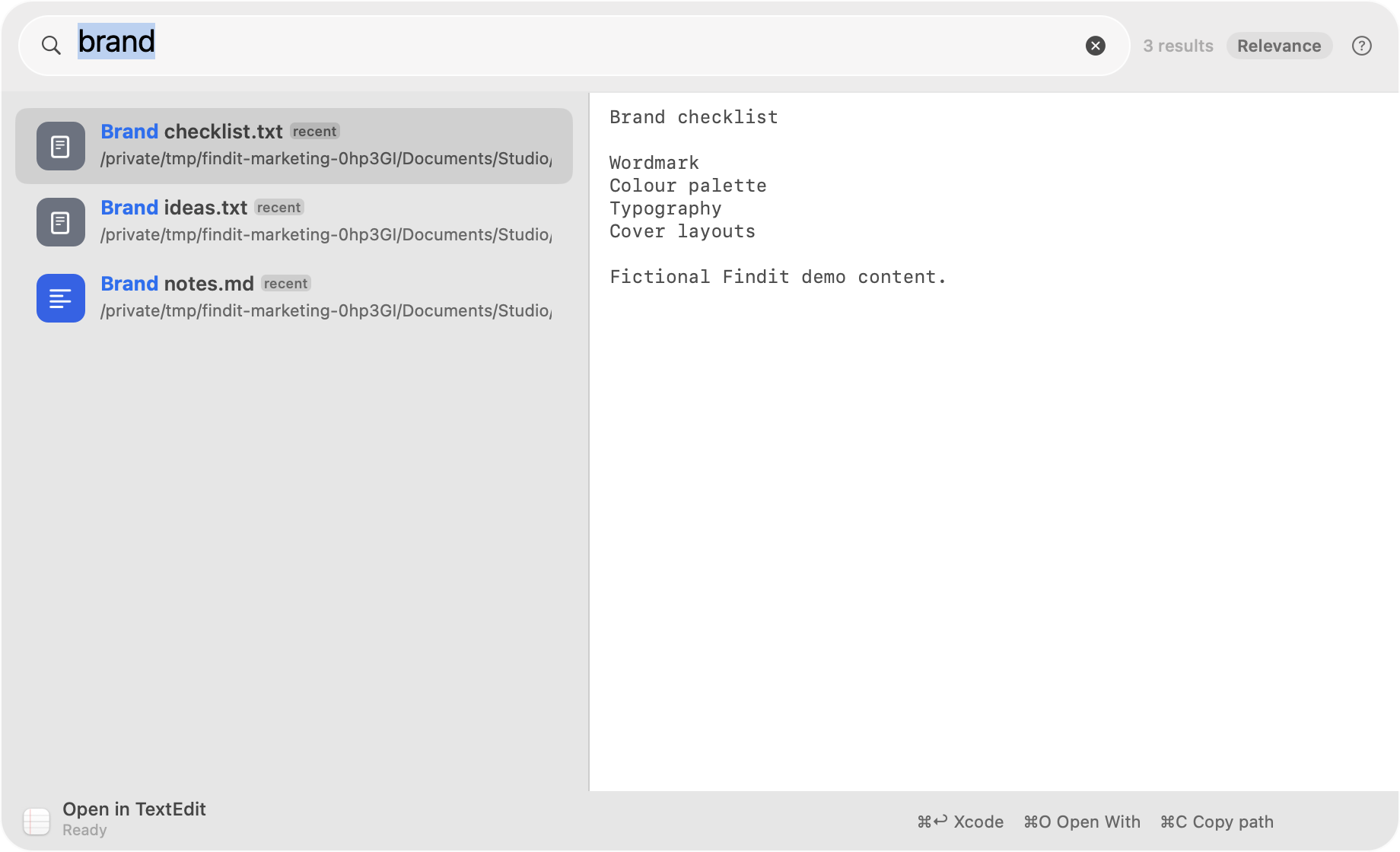
Names and paths, any word order. Matching understands case, accents, punctuation, and initials. Add type, date, size, folder, or Finder-tag filters.
budget ext:pdf dm:7din:@work auth servicetag:invoice !draftA little shortcut to your next big thing
That document. That idea. That file you almost remember. Find it, see what’s inside, and get back to what you came to do.
Free for Apple silicon Macs · macOS 13+
A file finder.
With somewhere to go.
WHY WE BUILT FINDIT / 01
A tiny search can become a detour: remember the name, guess the folder, open the wrong file, start again.
Spotlight brings search across your Mac. Raycast brings a broad command launcher. Finder gives you a place to browse. We wanted a home for the whole file journey: find the right result, understand it beside the list, and take the next step from the keyboard.
Findit brings its own index, precise filters, readable previews, and file actions into one native panel. A small tool that helps you stay with the work that matters.
Other tools keep evolving. See Apple’s Spotlight guide and Raycast’s File Search guide. Findit’s name and content search use its own engine.
A word. A type. A project.
Read it before opening it.
Open. Edit. Copy. Carry on.
A SMALL MEMORY IS ENOUGH / 02
Words in any order. A filter when you need one.
A preview to tell you you’ve found it.
TRY A SEARCH
Remember “garden”? Find the plan, the notes, and the moodboard together.
Interactive illustration with fictional files. This browser demo never accesses your Mac.
THE WHOLE FILE JOURNEY / 03
For a student finding notes, a designer gathering assets,
or a developer getting back into a project.
Names and paths, any word order. Matching understands case, accents, punctuation, and initials. Add type, date, size, folder, or Finder-tag filters.
budget ext:pdf dm:7din:@work auth servicetag:invoice !draftText, highlighted code, Markdown, images, PDFs, HTML, audio and video. Office files use Quick Look where supported.
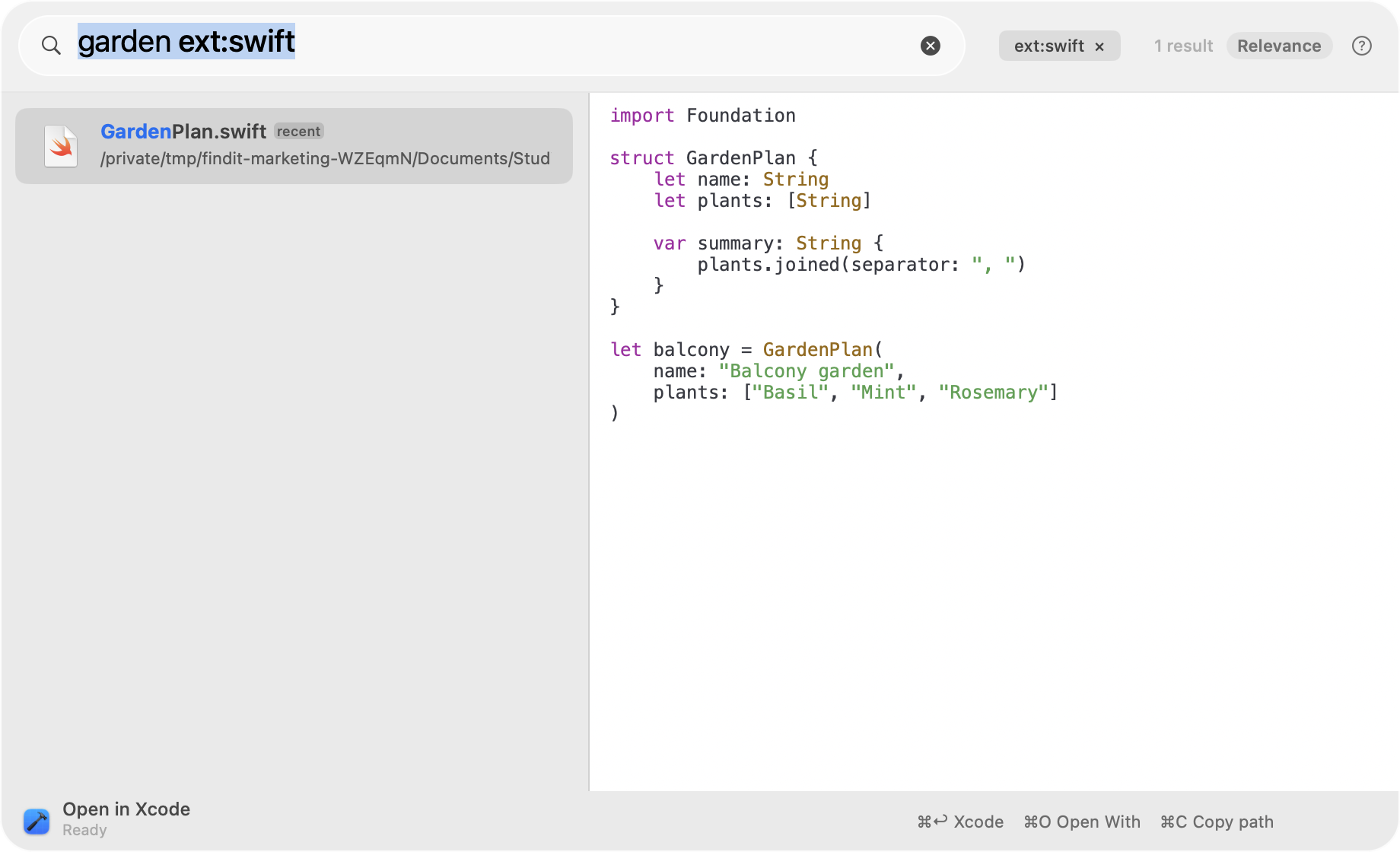 Real native app · Fictional demo files
Open with the right app. Copy a path or snippet. Tag files, drag them out, find related files, or Trash with Undo. Edit eligible UTF-8 text in the preview.
GO A LITTLE DEEPER
Every capability below is implemented. Optional features stay under your control.
Enable content indexing for content:budget and jump to matching text. Enable on-device semantic search for sem:the garden plan. The English language model runs locally; an explicit model download may be needed.
Recent use and active-project context help rank results. Filter by Git repository, choose a sort order, inspect “why ranked,” and create named folder scopes. Glob and regex filters are available for precise patterns.
See cloud placeholders without automatically downloading them. Keep a searchable snapshot of an opted-in external disk while disconnected. Offline results tell you to reconnect before opening. Rename and deleted-file hints help recover your bearings.
Launch apps, jump to System Settings, calculate an answer, run system actions, arrange windows, or switch windows. Window actions need Accessibility permission; some system actions need Automation permission.
Keep a local clipboard history, pin useful entries, and expand text snippets. These modes are optional, and stored text stays on your Mac. Enable only what fits your work.
A separately installed, read-only findit CLI searches the app’s last compacted snapshot, with JSON output, a terminal picker, and shell helpers. The findit:// URL scheme and optional local executable plugins connect your own workflows.
Choose indexed folders, disks, and extensions. Hidden files are opt-in. Use nested .finditignore files and exclusions to keep noisy or private folders out. Add source-code extensions in Settings when needed. Full Disk Access is optional.
Menu-bar access, a configurable global shortcut, light and dark previews, launch at login, multi-selection, Quick Look, keyboard navigation, VoiceOver labels and announcements, and reduced-motion support. No browser wrapper.
Search should help you use your information. It shouldn’t ask you to hand it over.
Findit’s index lives on your Mac. Filenames, indexed text, search queries, and ranking data aren’t uploaded to a search service. There’s no app account, telemetry, or cloud sync.
✓ Content indexing, semantic search, and clipboard history are opt-in.
✓ You choose the folders, extensions, and exclusions.
✓ HTML preview blocks external resources and disables JavaScript.
Update checks and explicitly requested model downloads make network requests. A web-search action opens your chosen provider. Local plugins are code you choose to run. The privacy page explains each.
A SMALL TOOL. A LITTLE MORE MOMENTUM.
Free · Apple silicon · macOS 13 Ventura or later
Version 0.1.0 · Signed and notarized · SHA-256 checksum
Open the DMG, copy Findit to Applications, and launch it once.
Review your folders and file types. Give the first index time to finish.
Type a little, preview the result, and press Return to open it.
GOOD QUESTIONS
Apple silicon Macs running macOS 13 Ventura or later. This release is for macOS; there is no public Intel, Windows, Linux, or iOS download here.
Findit is free to download and use, with no app account required.
No. Findit maintains its own file-name, path, and optional content index, with filesystem-change updates. It does not query Spotlight. The first index needs time to finish; content updates can lag name updates.
It searches configured, readable folders and enabled file types. It starts with existing Documents, Desktop, Downloads, Movies, Music, Pictures, and Applications folders. Protected locations may need permission. Add project roots and source-code extensions in Settings.
It is optional. Without it, Findit skips protected locations and keeps searching what macOS allows. Accessibility and Automation permissions are separate and only needed for relevant window and system actions.
Local search and previews work without a connection. Semantic search needs a local model. Updates, explicit model downloads, and web-search actions need a connection. Retained offline-disk results are searchable; reconnect the disk to open a file.
Quit the app and move it from Applications to Trash. To erase its local index and saved data, delete the Findit folder in ~/Library/Application Support. Remove ~/Library/Preferences/app.findit.macos.plist to reset preferences. See the privacy page.